A Work Order is a document given to the manufacturing shop floor by the Production Planner as a signal to manufacture a certain quantity of a certain Item.
To Access:
Login to ERP > Desktop > Manufacturing > Work Order
Create Work Order
- Go to Work Order
- Click Add Work Order
- Select the Item to be manufactured.
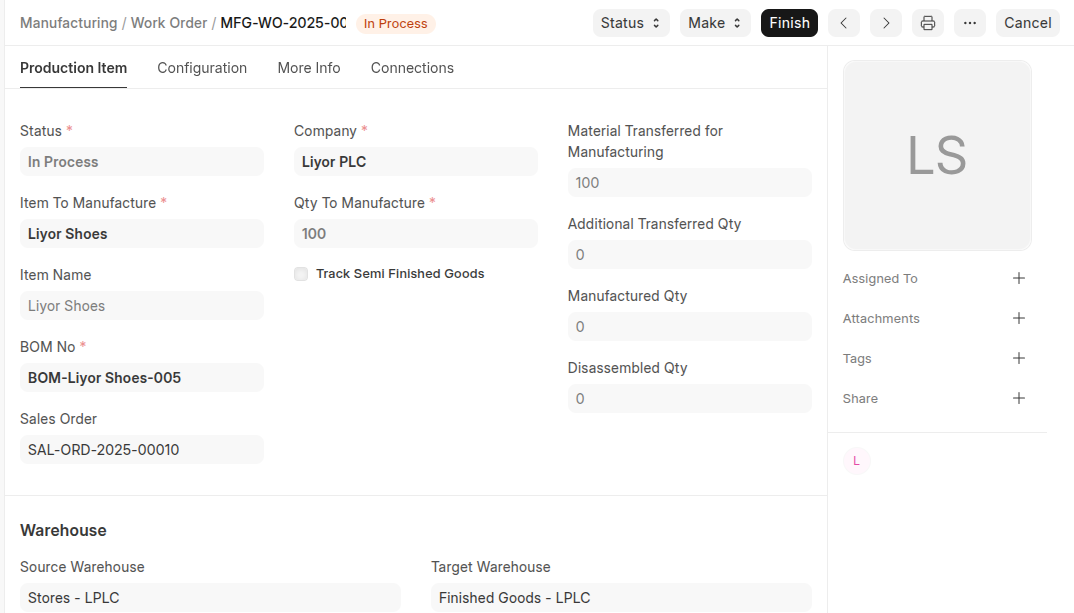
- The default BOM for that item will be fetched by the system. You can also change the BOM.
- Enter the quantity to manufacture. Raw material Items will be fetched only when this is set.
- Under warehouse section select source, WIP, target and scrap warehouse.
- If the selected BOM has Operations mentioned in it, the system will fetch all Operations from BOM, it the BOM has no operation you can select all operation under operation setion on the operation table using clicking add raw
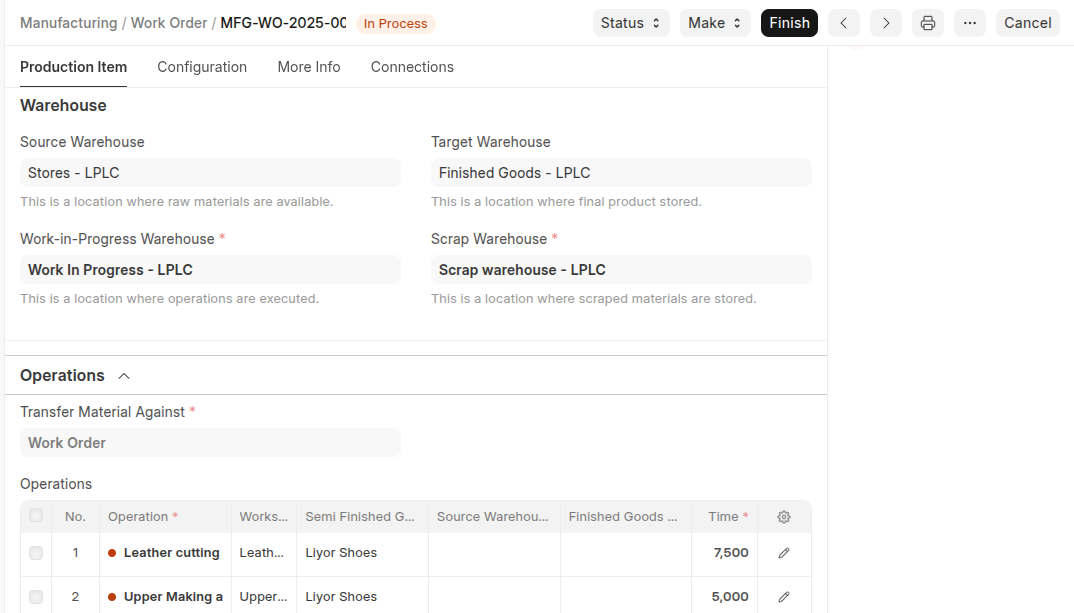
- Click Save then Submit.
Transferring Materials for Manufacturing
Once you have submitted your Work Order, Job Cards will be created for the Operations involved automatically and Start button will be visible to start work order and you need to Transfer the Raw Materials to initiate the Manufacturing Process. This will create a Stock Entry with all the Items required to complete this Work Order to be added to the WIP Warehouse.
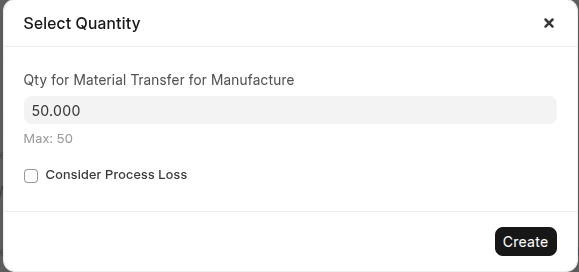
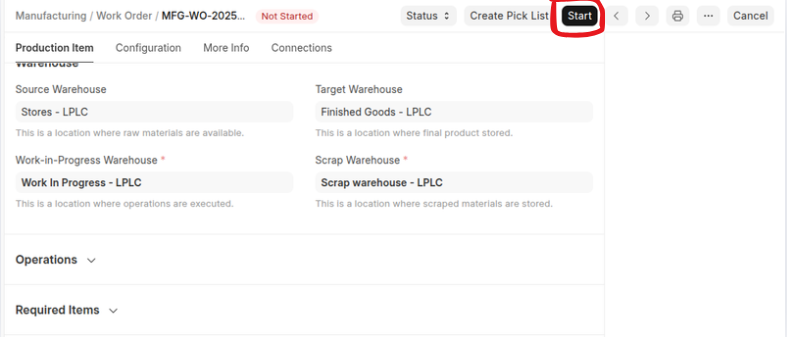 Once you Click on Start. Select quanitity popup will be displayed the check the qunatity correctness the click create button,
Once you clicked createstock entry will be displayed with all required raw material with thier qunatities, in the stock entry you can add addtional cost if have, then click Save and Submit.
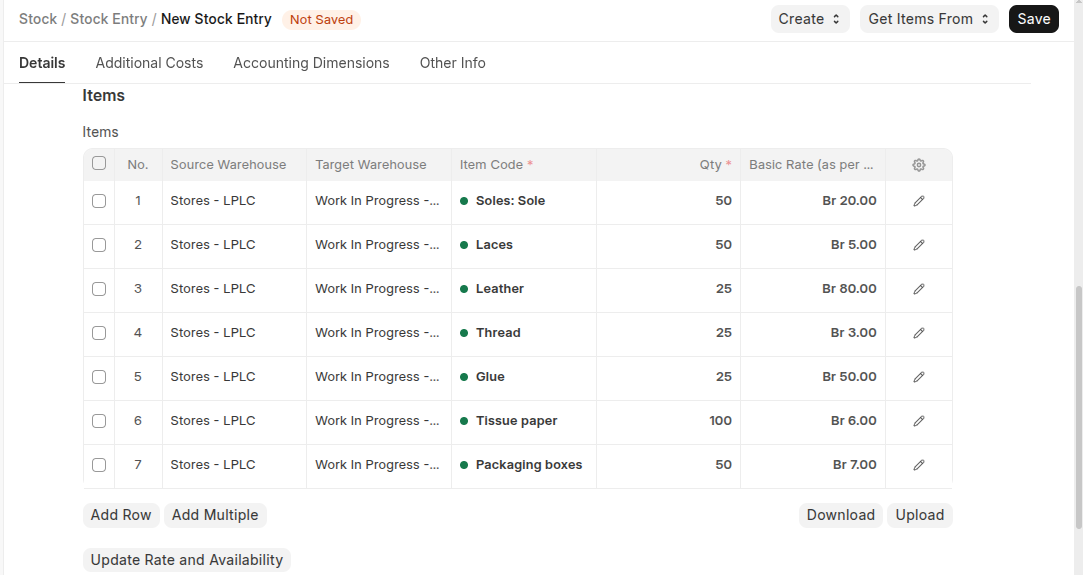 After Raw Material transfered to WIP the status of the Work order changed to In Progress and you can review the progress of work order.
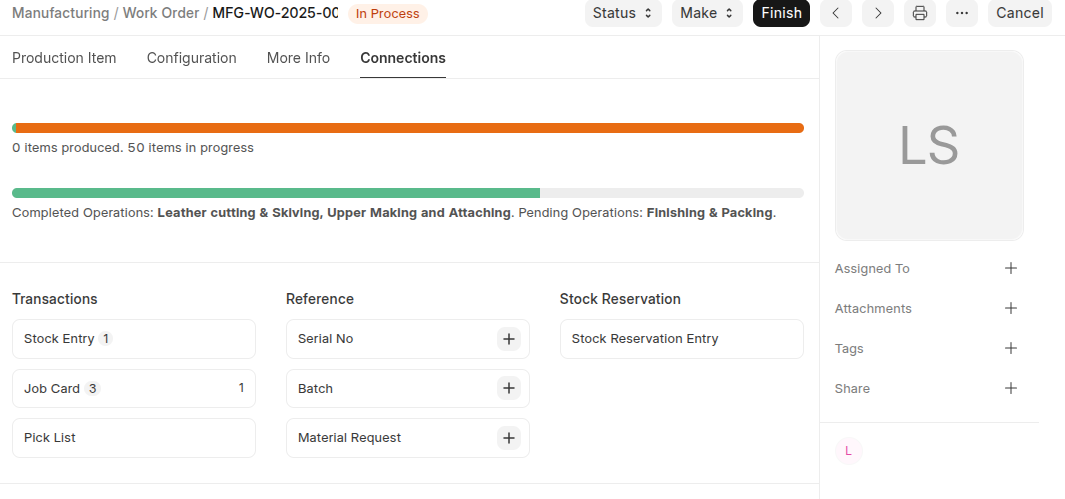
Complated Work Order
Once All Job Cards are complated work order look like this
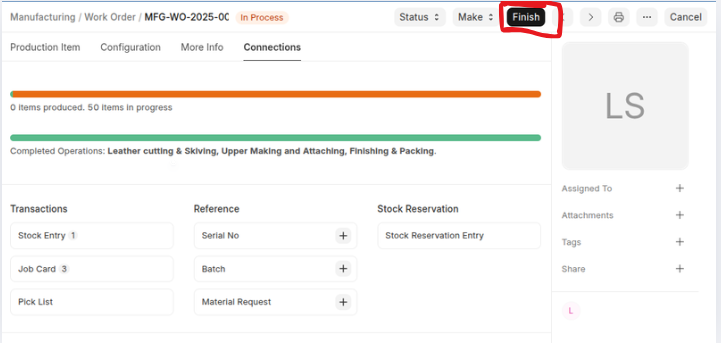 Then Click Finish button to Complate work order then this will be popup
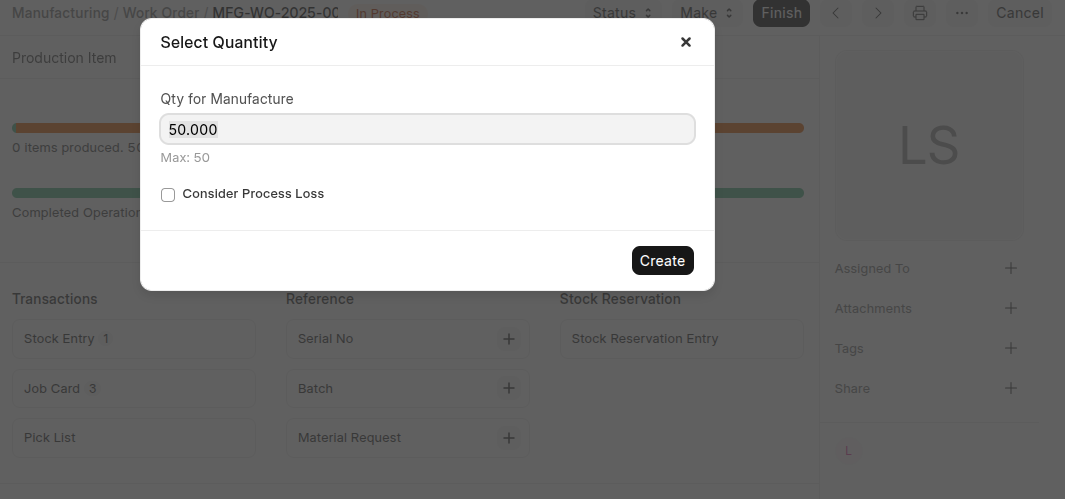 Once You Click Create button stock entry will be open and raw material will be decreased from WIP and Finished Goods move to Finished goodes warehouse and scrap item move to scrap item warehouse.
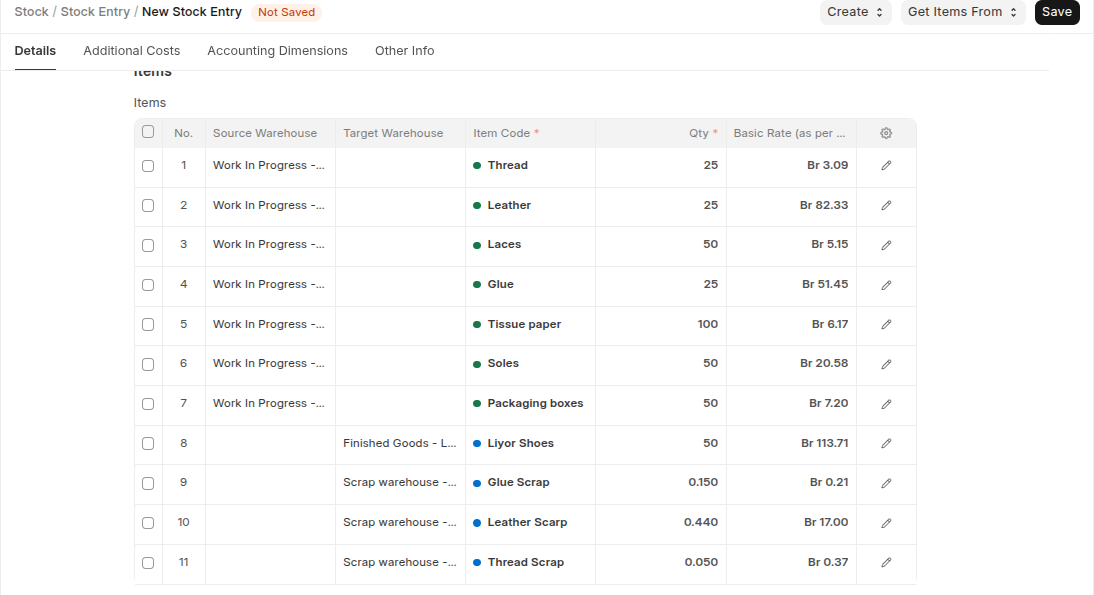 you can Add additional costs under additional costs section then click save then submit.