An Item is a product or a service offered by your company. ERP allows you to manage all sorts of items like raw-materials, sub-assemblies, finished goods, item variants, and service items.
To Access Item:
Login to ERP > Desktop > Stock > Item
Create Item
Before creating and using an Item, it is advised that you create item group and warehouse.
- Go to Item
- Click Add Item
- Enter Item code,
- Select Item Group and UOM (Unit of Measurment)
- Click Save
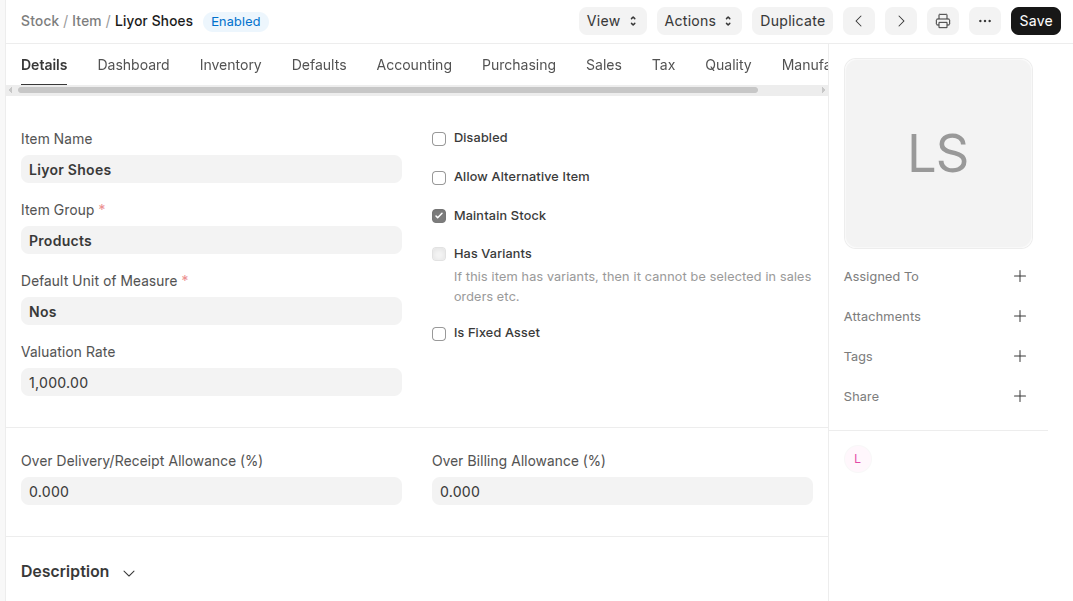
Addition Features:
- Tick “is fixed asset” if the purchased item is a fixed asset then select asset category, and also enable Auto Create Assets on Purchase if you want to auto create assets while purchasing this item through Purchase Cycle.
- You can set opening stock, valuation rate and standard selling rate.
- Allow Alternative Item:If you tick this, you can create and select an alternative item from the Item Alternative list.
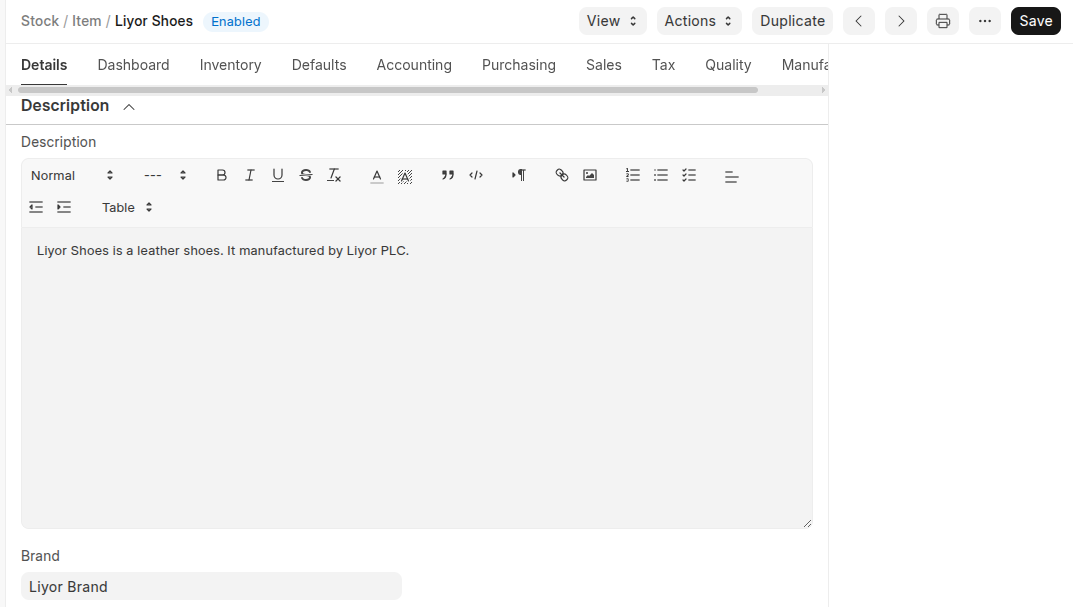
Brand and description
Select brand if the item has brand and also add description of the item.
Variants
An Item Variant is a version of an Item with different attributes like sizes or colors.
Tick 'Has Variants' if the item has variations. Once selected, the Variants section will appear.
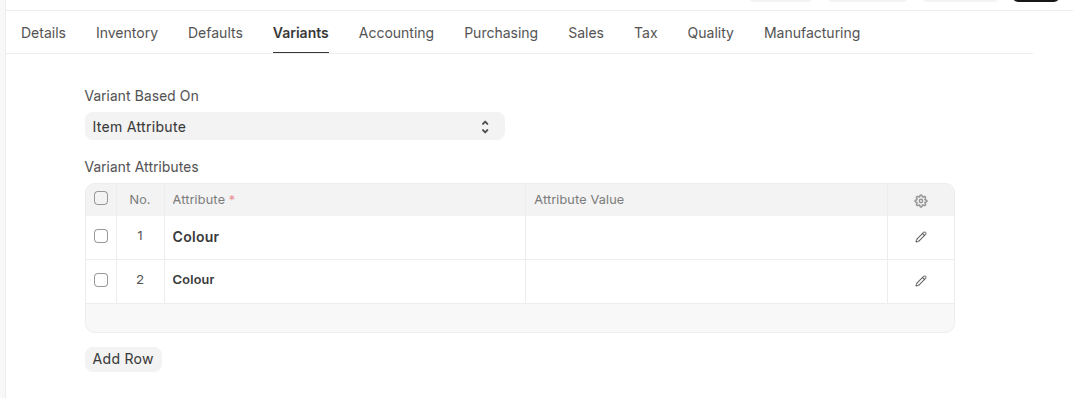 In the 'Variant Based On' field, choose 'Item Attribute' or “Manufacturer”. If you select “Item Attribute” select the attributes in the Variant Attributes table then save and the status will be template.
Once you create a variant item template you can then create variants from tamplet using the 'Create' button either single or multiple varient. If you are creating a single variant, select the spcific item attribute value, then click Create and Save. If you are creating multiple variants, select all the required item attribute values and click Make Variants; all selected variants will then be created automatically.
In the 'Variant Based On' field, choose 'Item Attribute' or “Manufacturer”. If you select “Item Attribute” select the attributes in the Variant Attributes table then save and the status will be template.
Once you create a variant item template you can then create variants from tamplet using the 'Create' button either single or multiple varient. If you are creating a single variant, select the spcific item attribute value, then click Create and Save. If you are creating multiple variants, select all the required item attribute values and click Make Variants; all selected variants will then be created automatically.
Inventory
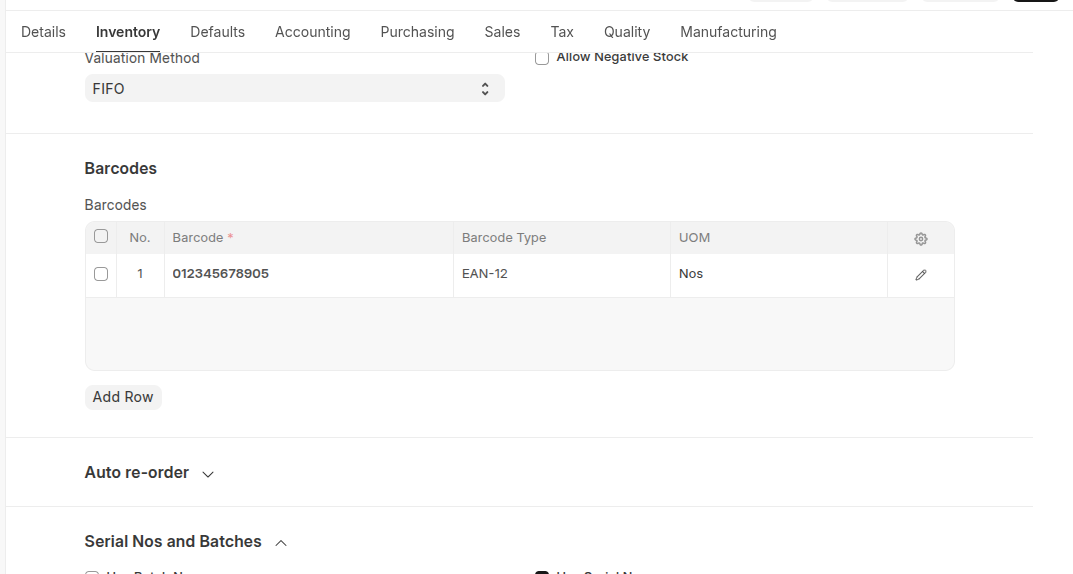
Under the Inventory section, enter the End of Life, Warranty, Valuation Method, and other required details. Additionally, if the item is serialized or batched, enable the 'Has Serial Number' or 'Has Batch Number' option accordingly.
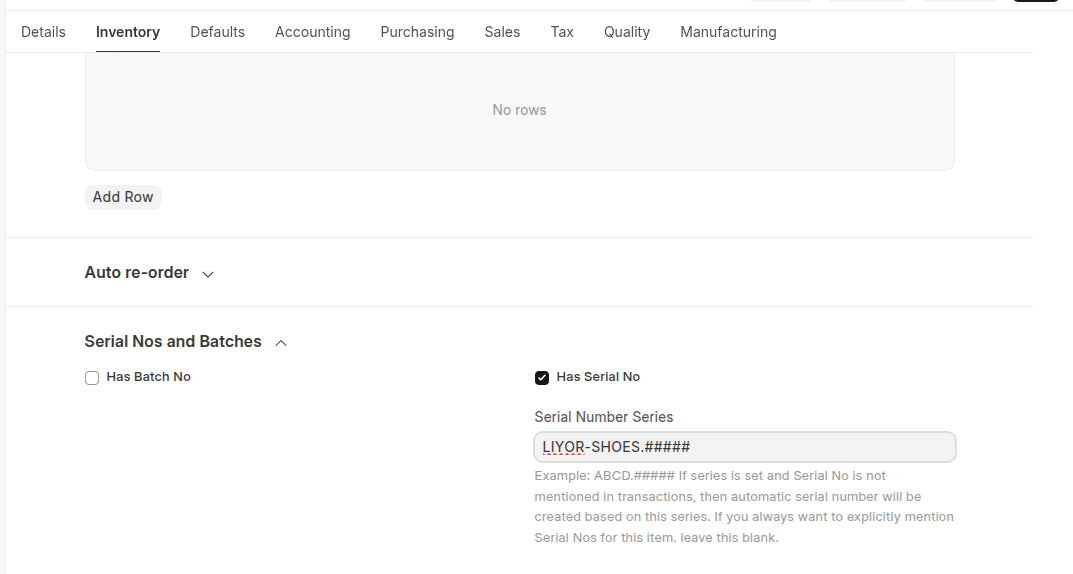 In Addition to this you can also set Barcodes it the item has barcode
Accounting Section
In the Accounting section, you can set the default Company, Warehouse, and Price List in the Item Defaults table.You can also enable Deferred Expense and Deferred Income, and specify the monthly income and expense amounts.
Purchase
Under the Purchasing section, set the Lead Time in days, Minimum Order Quantity, and specify the Supplier (if have)
Tax
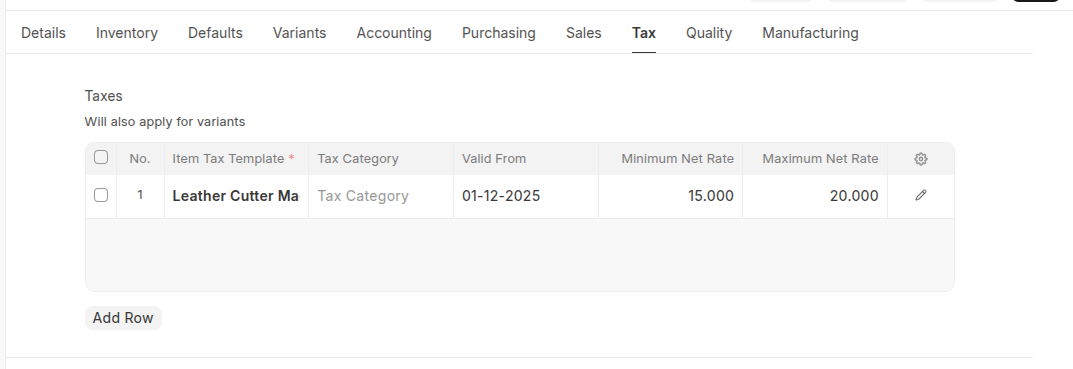
If a particular Item has a different tax rate than the rate defined in the standard tax Account. You can select specific item tax in the tax section.
Quality
If the material needs a quality check, you can enable quality inspection before purchase and Inspection Required before Delivery. If a Quality Inspection is prepared for this Item, then you can select the template in the quality section.