A Pick List is a document that indicates which items should be taken from your inventory to fulfill orders.
To Access:
Login to ERP > Desktop > Stock > Pick List
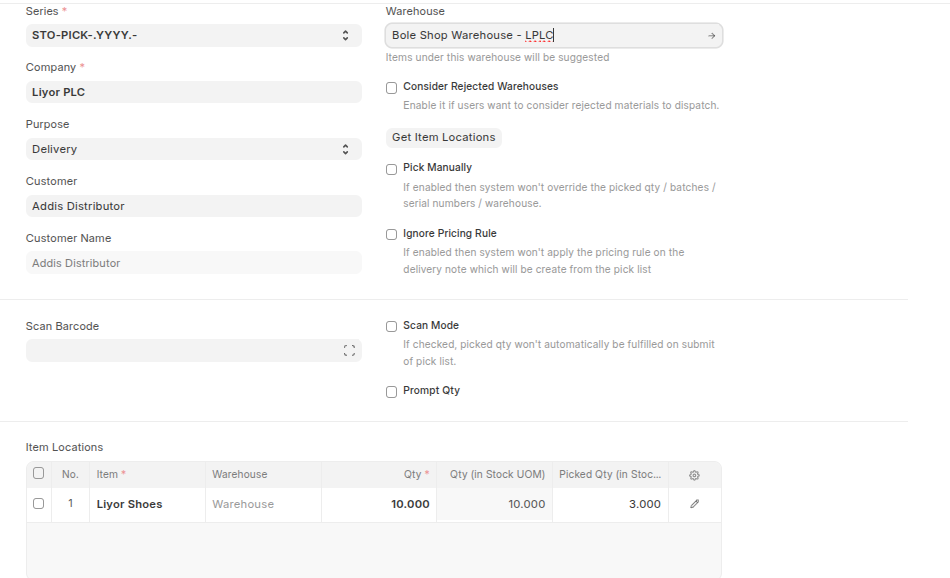
Create Pick List
- Go to Pick List
- Click Add Pick List
- Select Purpose: Purpose Options are:-
- Delivery: This option will let you add Items from a Sales Order, to deliver. After submitting Pick List a new Delivery Note can be created based on the Warehouse from which items were picked.
- Material Transfer for Manufacture: This will let you select a Work Order from which raw materials will be pulled for picking. You will be presented with an option to select the number of finished goods for which you want to pick raw materials. After picking the stock you can create Stock Entry for the picked items
- Material Transfer: This will let you select a Material Request for which you want to pick items. After picking the stock you can create a Stock Entry for the picked items.
- Add Item and the quantity you want to pick in the Item Locations table using clicking add row.
- Click Save then Submit
Last updated 6 months ago
Was this helpful?