The Employee module is used to create and manage employee records in the HR system.
Every employee must be created here before they can be used in attendance, leave, or payroll.
To access Employee, go to:
Login > Desktop > Human Resources > Employee
Employee List View
The Employee list view displays all employees available in the system.
Actions
- Use filters to search employees
- Click Add Employee to create a new employee
- Click an employee name to open the record
Create an Employee
- Go to the Employee list and click Add Employee.
- Fill in the required employee details.
- Enter Basic Details such as name, gender, date of joining, and status.
- Link or create a User if required.
- Select Company Details like company, designation, department, and grade.
- Review the information.
- Click Save to create the employee record.
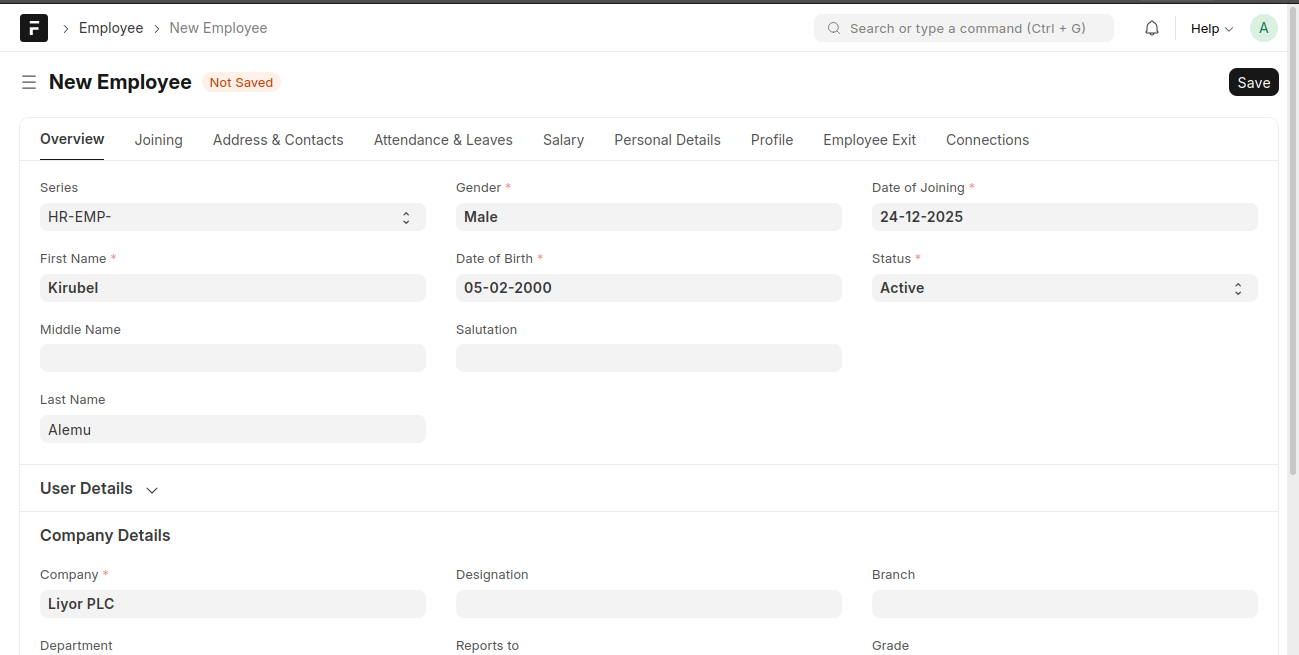
Overview Tab
In this section, fill in the basic employee information including:
- Series: Unique identifier for the employee.
- Name: First, Middle, and Last name of the employee.
- Gender: Select the gender of the employee.
- Date of Birth: Input the employee's birth date.
- Date of Joining: Select the joining date.
- Status: Set the employment status (e.g., Active).
Joining Tab
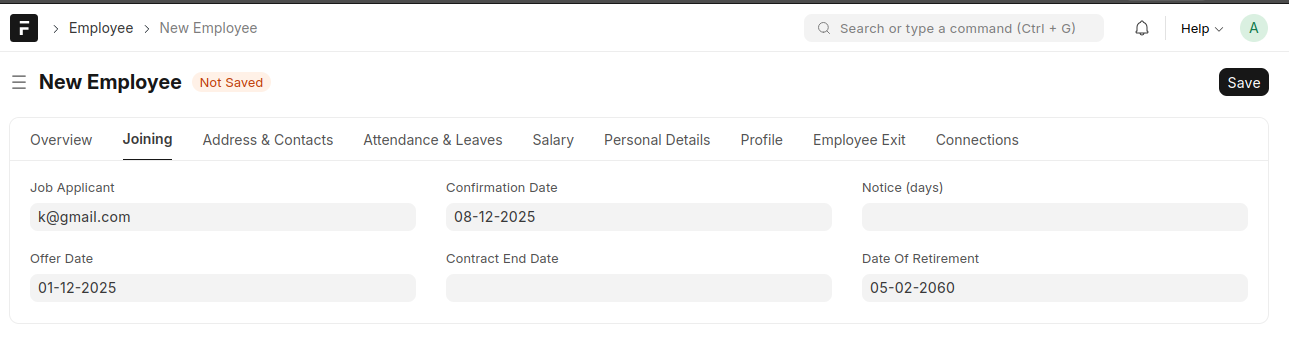
This tab captures the joining details of the employee:
- Job Applicant: Email of the applicant.
- Offer Date: Date the job offer was made.
- Confirmation Date: When the employee's employment is confirmed.
- Contract End Date: End date of the employee's contract (if applicable).
- Notice Period: Duration of notice days required for resignation.
- Date of Retirement: When the employee is expected to retire.
Address & Contacts Tab
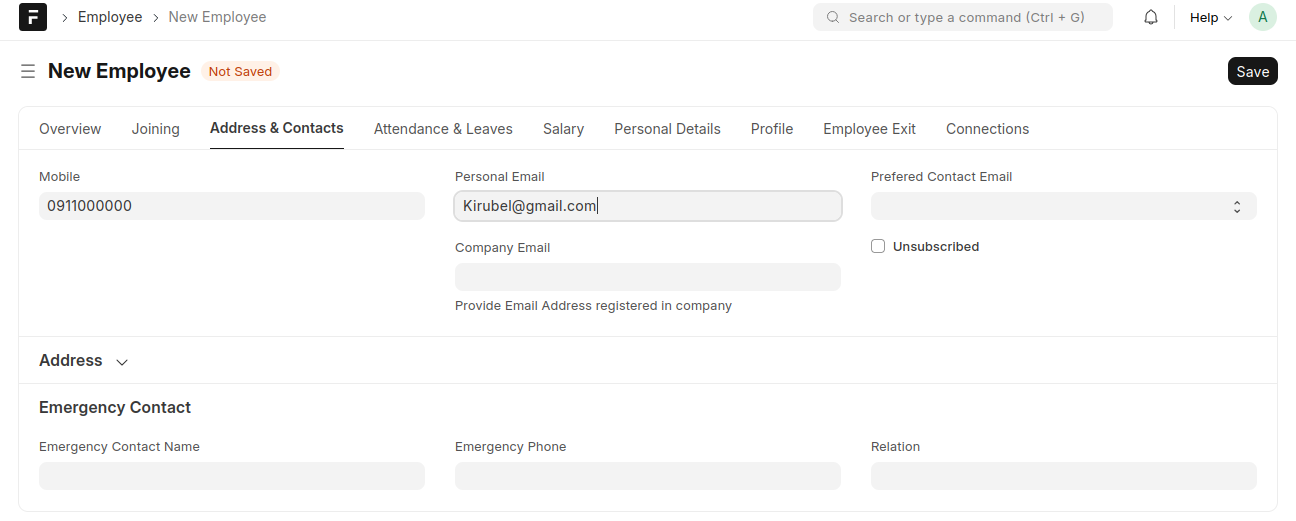
Here, input the contact information of the employee:
- Mobile: Employee’s phone number.
- Personal Email: Email for personal contact.
- Company Email: Company-assigned email address.
- Emergency Contact: Details of a contact person in case of emergencies.
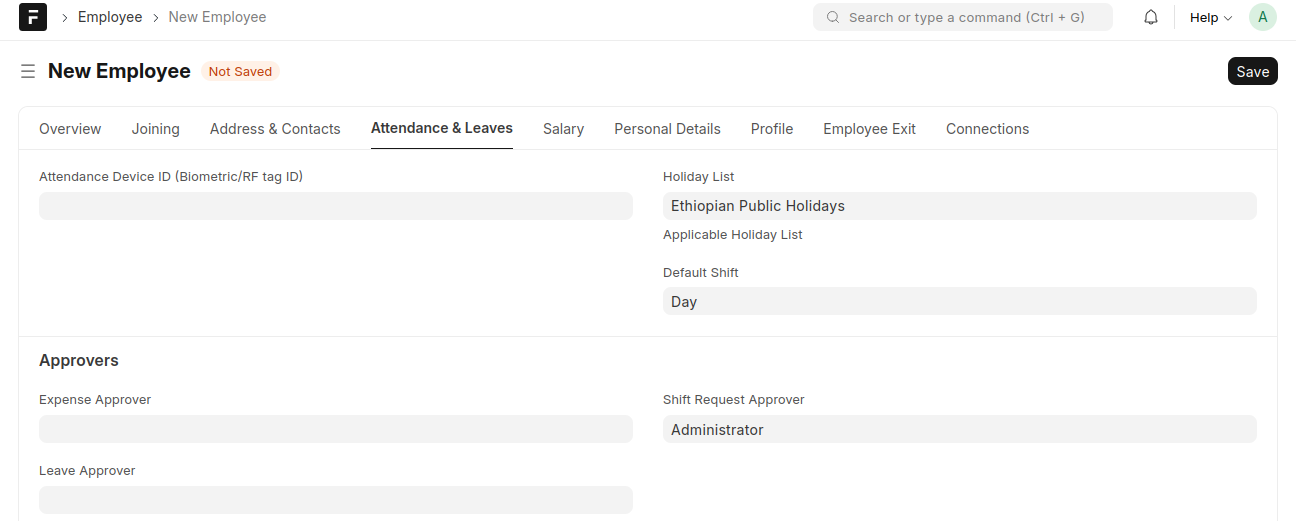
Attendance & Leaves Tab
This section is used for tracking the employee's attendance and leave:
- Attendance Device ID: Biometric or RF tag ID for attendance tracking.
- Holiday List: Choose the applicable holiday list for the employee.
- Default Shift: The employee's default working shift.
- Approvers: Select approvers for expense, leave, and shift requests.
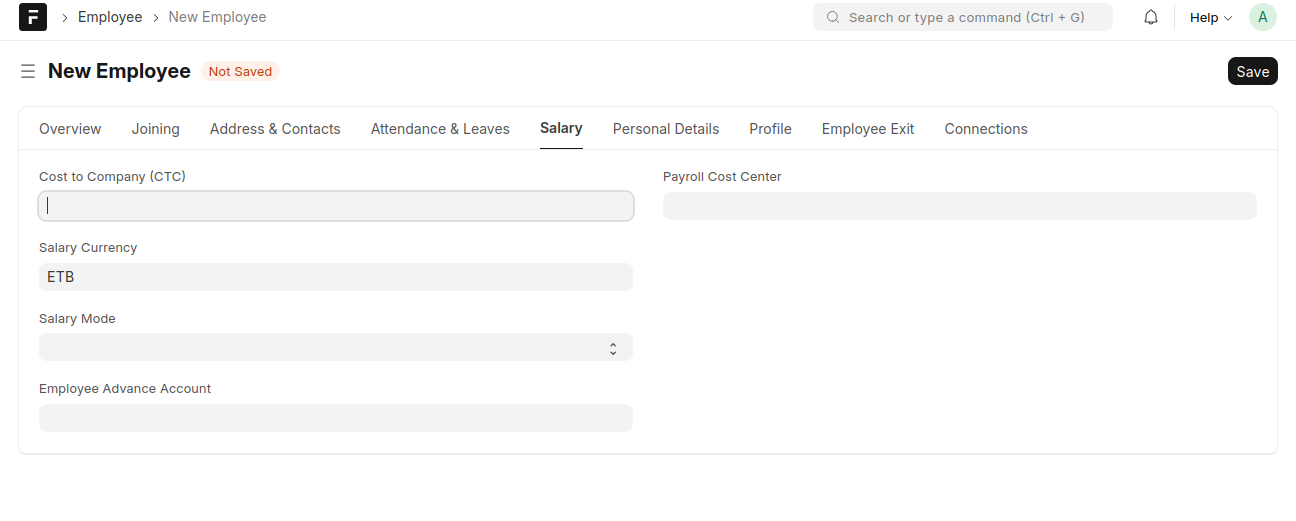
Salary Tab
Define the employee’s salary details:
- Cost to Company (CTC): The total annual compensation.
- Salary Currency: Select the currency of salary payment.
- Salary Mode: Define the method of salary payment (e.g., bank transfer).
- Employee Advance Account: Set up an account for any salary advances.
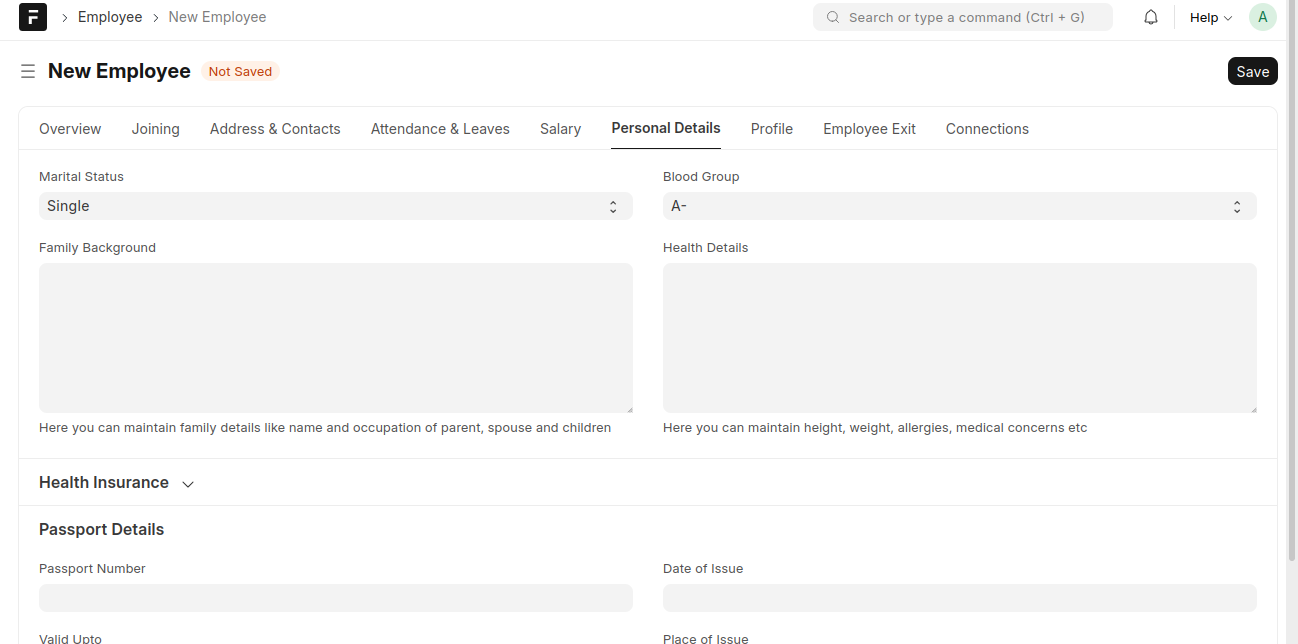
Personal Details Tab
Input additional personal details for the employee:
- Marital Status: Select the employee's marital status.
- Blood Group: Record the employee's blood group.
- Health Details: Information like height, weight, and any known allergies.
- Health Insurance: Details of the health insurance policy, if applicable.
- Passport Details: Input passport information if relevant.
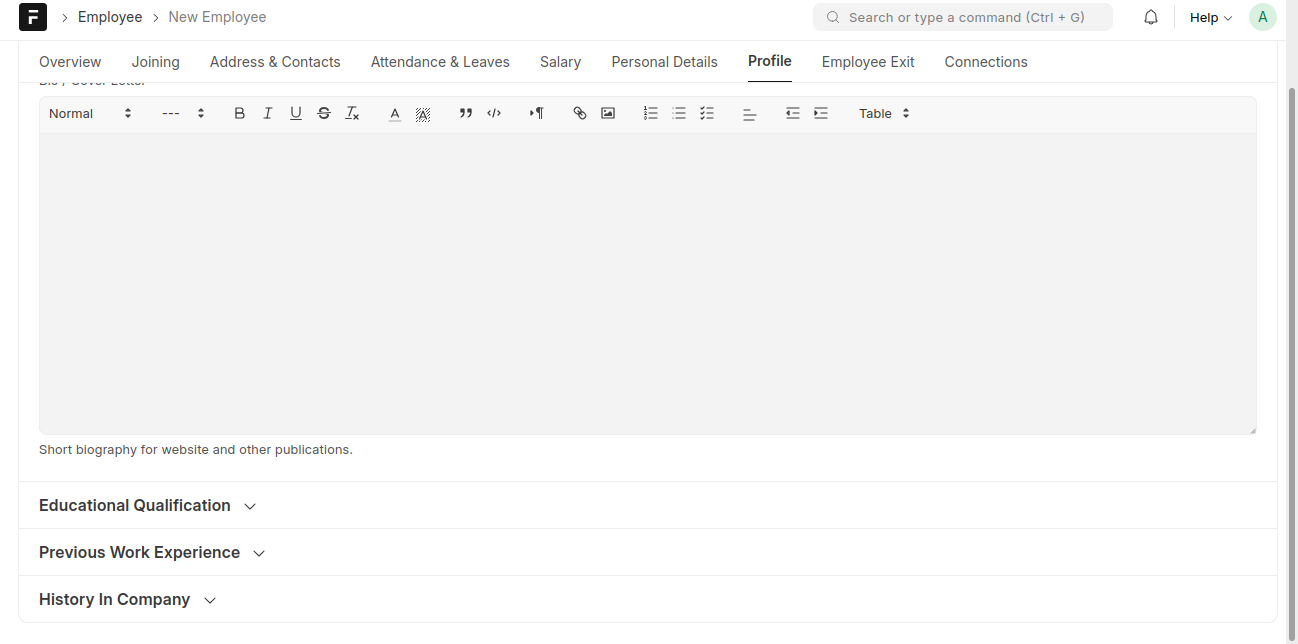
Profile Tab
This section is for maintaining the employee's biography, qualifications, and history:
- Bio/Short Description: A short biography or description for the employee.
- Educational Qualification: Information about the employee's qualifications.
- Previous Work Experience: Record the employee's past work history.
- History in Company: Any notable milestones or achievements within the company.
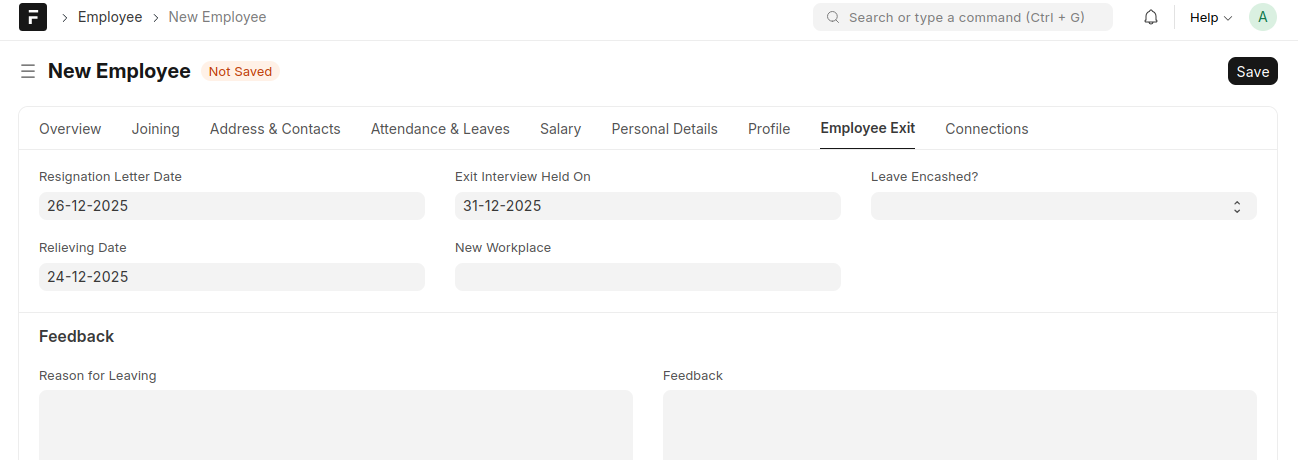
Employee Exit Tab
This section records details about employee exit:
- Resignation Date: Date the employee submitted their resignation.
- Exit Interview: Date of the employee's exit interview.
- Relieving Date: The last working day.
- Leave Encashment: Details regarding unused leave encashment.
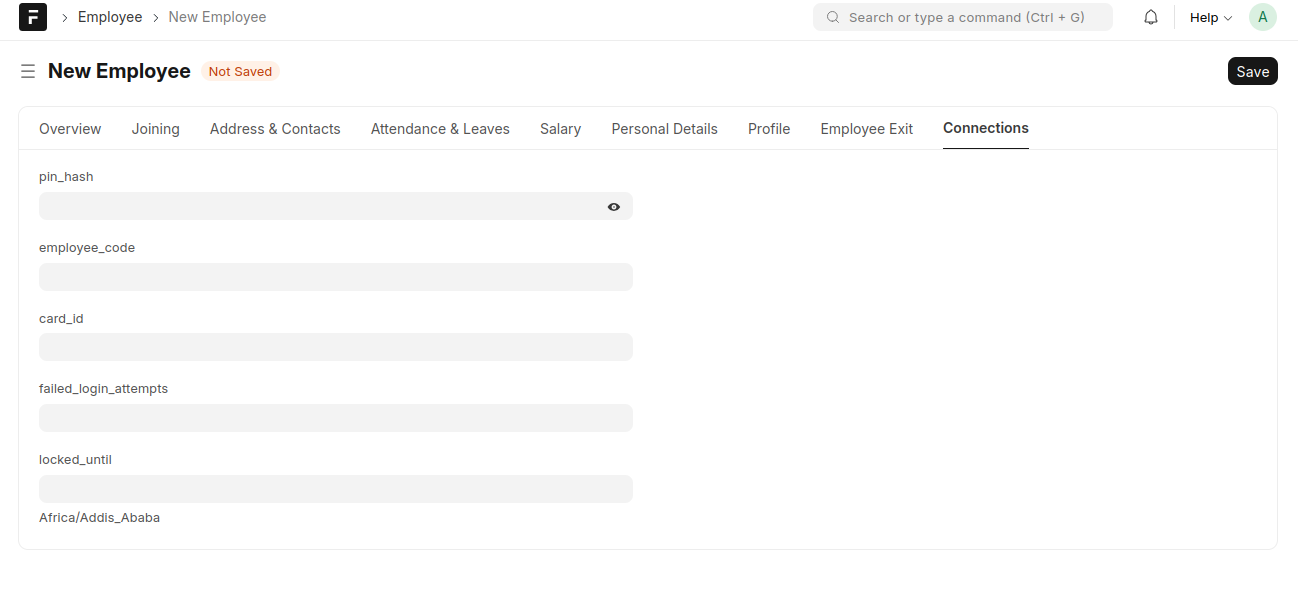
Connections Tab
This tab stores the employee's security and login details:
- PIN Hash: Employee login credentials.
- Employee Code: Unique code for the employee.
- Card ID: ID associated with the employee’s access card.
- Failed Login Attempts: Record of failed login attempts.
- Locked Until: The date until the account is locked (if applicable).
- Time Zone: Time zone setting for the employee.