Manufacturing Settings
Manufacturing settings configure production workflows, manage bill of materials (BOM), track work orders, and oversee inventory to streamline operations and ensure efficient production management.
To Access:
Login to ERP > Desktop > Manufacturing > Manufacturing Settings
BOM and Production Section
- Raw Materials Consumption:

- Allow Continous Material Consumption: If enabled, materials can be consumed without immediately manufacturing finished goods in a single Work Order. This is useful if one or more time consuming products are being manufactured.
- Backflush raw materials based on: The method selected here will be chosen for backflushing raw materials : 1. Material Transferred for Manufacture 2. BOM
- Validate Components and Quantities Per BOM: If "Backflush Raw Materials Based On" as BOM, then users can validate component quantity according to BOM. To do that they have to enable "Validate Components Quantities Per BOM" checkbox.
- Get Raw Materials Cost from Consumption Entry: If the 'Allow Continuous Material Consumption' is enabled then user can see the option 'Get Raw Materials Cost from Consumption Entry'.
The 'Get Raw Materials Cost from Consumption Entry', determines whether the cost of raw materials used in production should be automatically derived from the consumption entries recorded during the manufacturing process. When enabled, ERP calculates the cost based on the actual materials consumed, ensuring accurate cost tracking and financial reporting.
- BOM:

- Update BOM Cost Automatically: If ticked, the BOM cost will be automatically updated based on Valuation Rate / Price List Rate / last purchase rate of raw materials.
- Allow Editing of Items and Quantities in Work Order: If enabled, the system will allow you to edit the raw materials and their quantities in the Work Order.
- Overproduction for Sales and Work Order

- Overproduction Percentage For Sales Order: It defines the allowable percentage by which the actual production quantity can exceed the planned quantity specified in a work order.
- Overproduction Percentage For Work Order: It allows you to specify a percentage by which production can exceed the sales order quantity.
- Extra Material Transfer

- Transfer Extra Raw Materials to WIP (%): It define the allowable transfer extra raw materials to work in progress.
Job Card and Capacity Planning
- Add Corrective Operation Cost in Finished Good Valuation: If enabled then the cost for a corrective operation type will also be included while calculating finished goods valuation
- Enforce Time Logs: Enabling will force each Job Card Time Log to have From Time and To Time.
- Allow Excess Material Transfer If enabled, the Material Transfer button will be visible and will allow you to transfer raw materials even if after the raw material requirement is fulfilled against a Job Card.
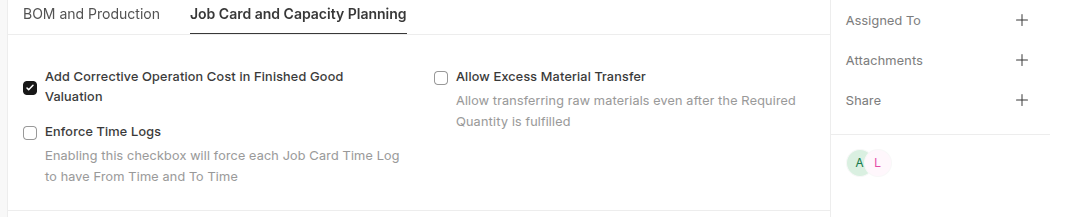 Capacity Planning
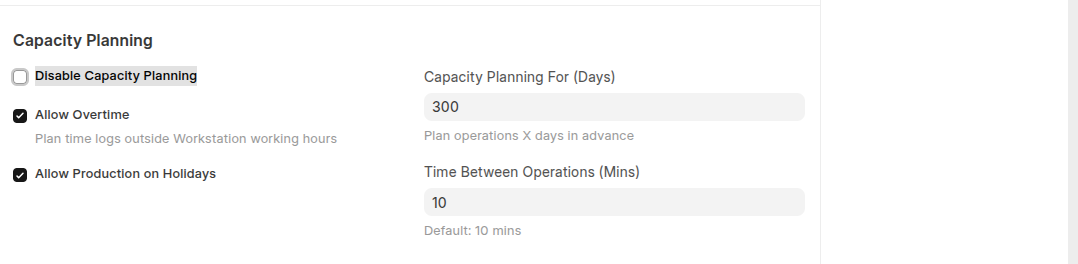
- **Disable Capacity Planning ** If checked, capacity planning won't be done. Enabling it will help to decide whether or not to accept the new orders based on the resources and existing work orders.
- Capacity Planning For (Days) The number of days specified here means the number of days in advance when the capacity planning activities will be initiated for production.
- Time Between Operations (Mins) This specifies the time span that should be kept between two operations in minutes.
Other Settings

- Set Operating Cost / Scrap Items From Sub-assemblies In the case of 'Use Multi-Level BOM' in a work order, if the user wishes to add sub-assembly costs to Finished Goods items without using a job card as well the scrap items, then this option needs to be enable.
- Make Serial No / Batch from Work Order If checked, system will automatically create the serial numbers / batches for finished goods on submission of Work Order
Last updated 6 months ago
Was this helpful?