Accounting Settings
ERPNext allows you to configure some aspects of Accounting as per your business rules.
Invoice and Billing
Invoice Cancillation:
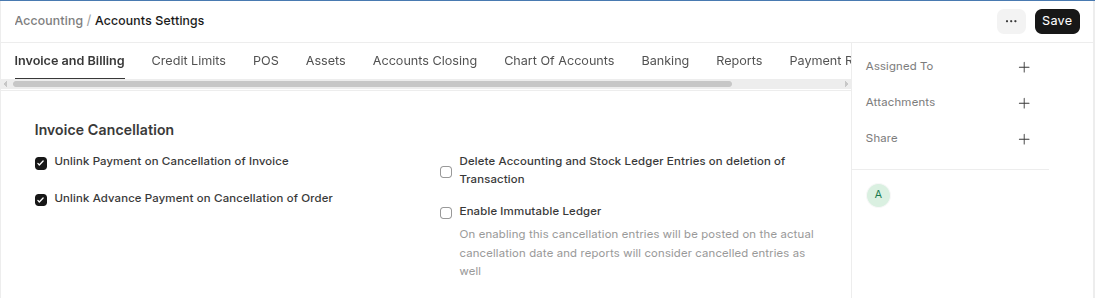
- Unlink Payment on Cancellation of Invoice: If checked, system will unlink the payment against the respective invoice.
- Unlink Advance Payment on Cancellation of Order: if checked the system will unlinks any advance payments made against Purchase/Sales Orders.
- Delete Accounting and Stock Ledger Entries on deletion of Transaction: Enabling this will allow the deletion of linked General Ledger and Stock Ledger Entries on deleting invoices and receipts.
- Enable Immutable Ledger: On enabling this cancellation entries will be posted on the actual cancellation date and reports will consider cancelled entries.
Invoicing Features:
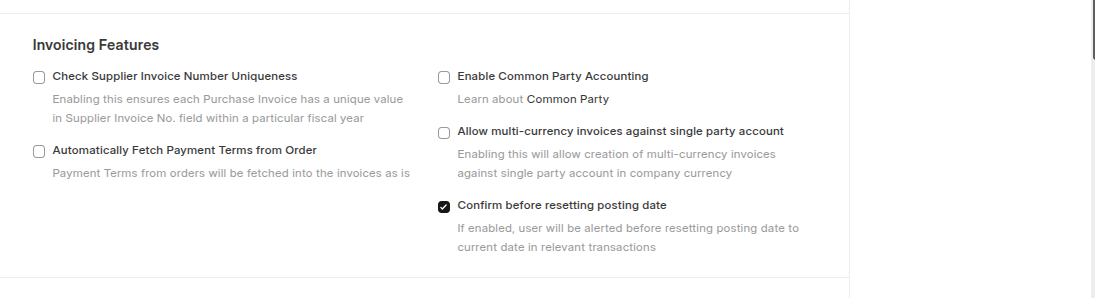
- Check Supplier Invoice Number Uniqueness: When checked, Purchase Invoices with same 'Supplier Invoice No' will not be allowed.
- Automatically Fetch Payment Terms from Order: If enabled Invoices automatically inherit payment schedules from linked orders.
- Enable Common Party Accounting: If checked, an adjustment Journal Entry will be posted automatically on creation of Invoices against common Customer & Supplier.
- Allow multi-currency invoices against single party account: Enabling this will allow creation of multi-currency invoices against single party account in company currency.
- Confirm before resetting posting date: If enabled, user will be alerted before resetting posting date to current date in relevant transactions
Journals:

- Merge Similar Account Heads: If enabled Rows with Same Account heads will be merged on Ledger.
Deferred Accounting Settings

- Book Deferred Entries Based On: Deferred revenue amount can be booked based on Day and Month.
- Automatically Process Deferred Accounting Entry: If this setting is disabled deferred accounting will have to be processed manually using Process Deferred Accounting.
- Book Deferred Entries Via Journal Entry: If this is unchecked, direct GL entries will be created to book deferred revenue or expense. when you enabled this setting Submit Journal Entries setting will be displayed.
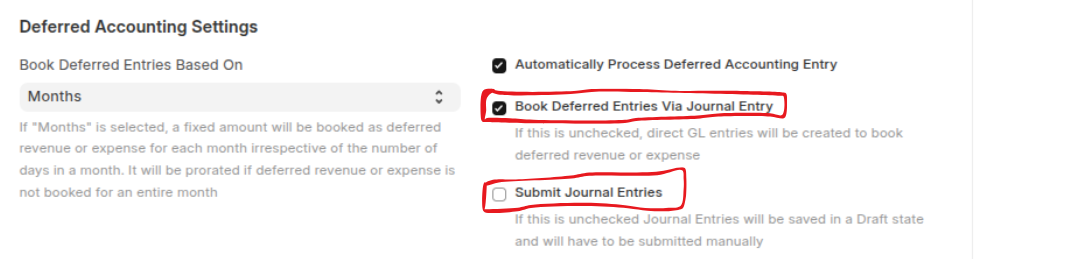 If this is unchecked Journal Entries will be saved in a Draft state and will have to be submitted manually.
Tax Settings
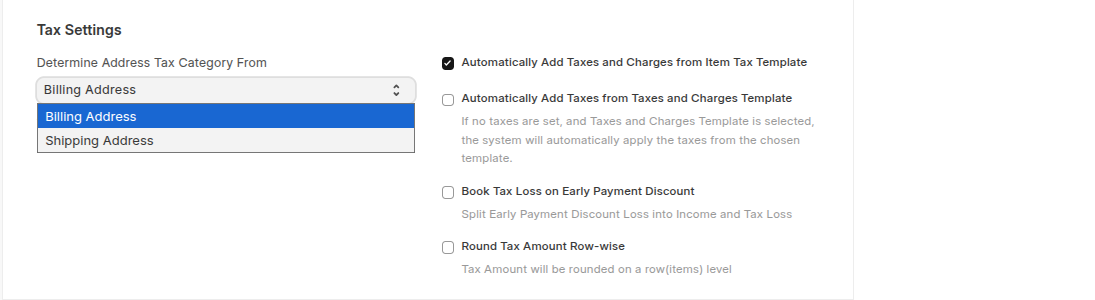
- Determine Address Tax Category From: An address can be Shipping or Billing address. Set which addres to select when applying Tax Category either billing or shipping address.
- Automatically Add Taxes and Charges from Item Tax Template: Enabling this will populate the Taxes table in transactions if an Item Tax Template is set for an Item and that Item is selected in the transaction.
- Automatically Add Taxes from Taxes and Charges Template: If enabled the system will automatically apply the taxes from the chosen template.
- Book Tax Loss on Early Payment Discount: Enabling this will split the Payment Entry discount deductions into Income Loss and Tax Loss if the document against the Payment Entry has an Early Payment Discount set.
- Round Tax Amount Row-wise: If enabled Tax Amount will be rounded on a row(items) level.
Print Settings

- Show Inclusive Tax in Print: It allows you to display the tax amounts inclusive of the item prices on printed documents such as invoices and sales orders.
- Show Taxes as Table in Print: It allows you to display tax details in a tabular format on printed documents such as invoices, purchase orders, and sales orders.
- Show Payment Schedule in Print: The Payment Schedule table is visible on using Payment Terms. Enabling this will show this table in print view.
Item Price Settings
 *** Maintain Same Rate Throughout Internal Transaction:** If enabled, the system enforces the same item rate across all related internal transactions.
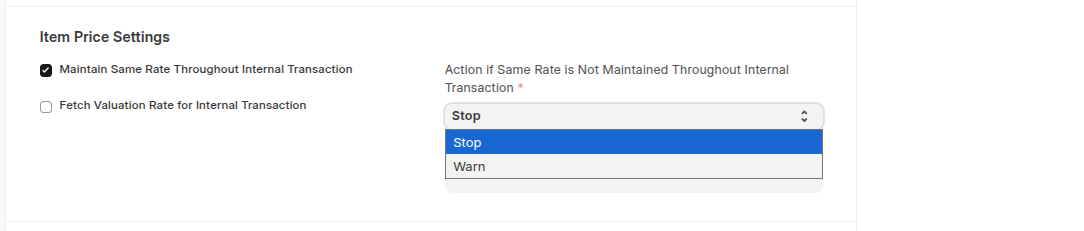 If Maintain Same Rate Throughout Internal Transaction enabled Action if Same Rate is Not Maintained Throughout Internal Transaction and Role Allowed to Override Stop Action settings are visible.
Action if Same Rate is Not Maintained Throughout Internal Transaction: Defines the system action ( warning or stop) when a rate mismatch occurs in an internal transaction.
Role Allowed to Override Stop Action Specifies the user roles that are permitted to proceed with the transaction even when the system stop action is triggered.
- Fetch Valuation Rate for Internal Transaction: f enabled, The system automatically uses the item’s valuation rate for internal transactions instead of the selling or buying rate.
Currency Exchange Settings

- Allow Stale Exchange Rates: This should be unchecked if you want ERPNext to check the age of records fetched from Currency Exchange in foreign currency transactions.
- Allow Implicit Pegged Currency Conversion: If enabled, the system automatically converts currencies via a pegged intermediary currency instead of direct conversion.
Payment Reconciliation Settings
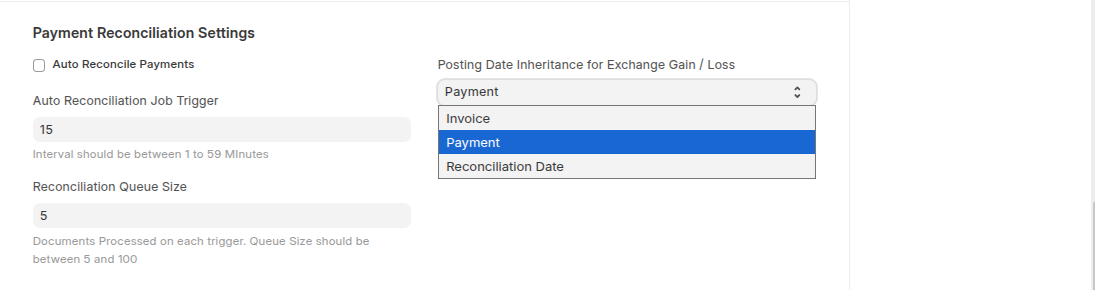
- Auto Reconcile Payments: If enabled, the system automatically matches and reconciles payments against corresponding invoices.
- Set Auto Reconciliation Job Trigger and Reconciliation Queue Size based on your company policy.
- Posting Date Inheritance for Exchange Gain / Loss: Determines the posting date for exchange gains or losses based on payment, invoice, or reconciliation date.
Credit Limit
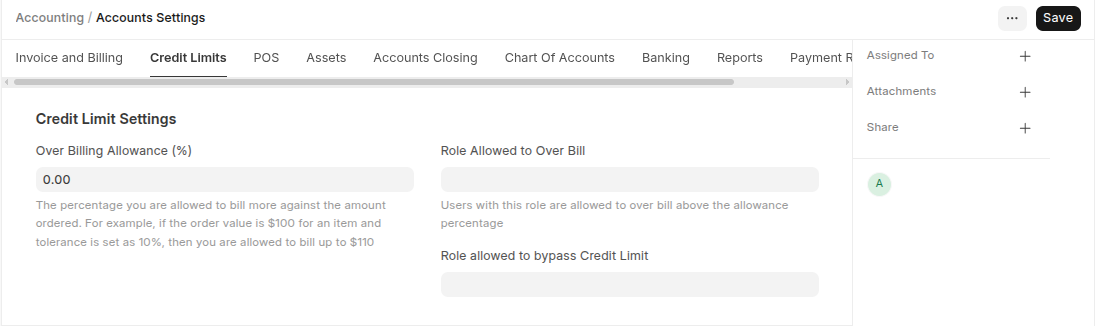 Credit Limit Settings: The percentage you are allowed to bill more against the amount ordered.
Role Allowed to Over Bill: Users with this role are allowed to over bill above the allowance percentage.
Role allowed to bypass Credit Limit: User this roled to create and submit transactions even when they exceeds their credit limit.
Credit Limit Settings: The percentage you are allowed to bill more against the amount ordered.
Role Allowed to Over Bill: Users with this role are allowed to over bill above the allowance percentage.
Role allowed to bypass Credit Limit: User this roled to create and submit transactions even when they exceeds their credit limit.
POS Setting
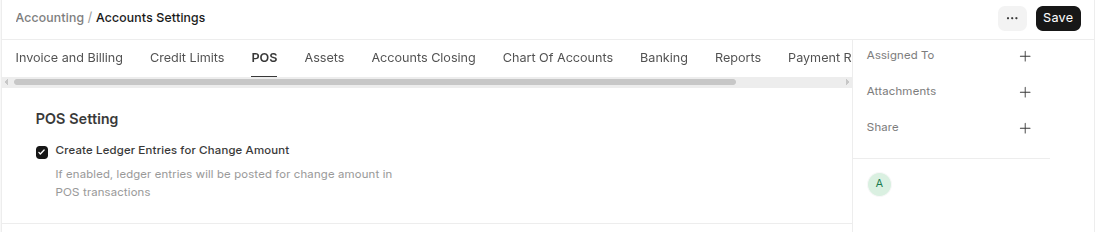 Create Ledger Entries for Change Amount: If checked, for a Point of Sale invoice, the system will post ledger entries considering the change amount given.
Asset Settings
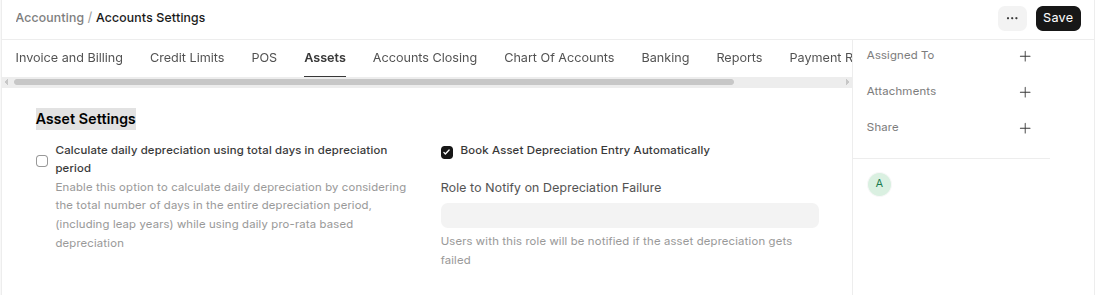
- Calculate daily depreciation using total days in depreciation period: Enable this option to calculate daily depreciation by considering the total number of days in the entire depreciation period, (including leap years) while using daily pro-rata based depreciation
- Book Asset Depreciation Entry Automatically: IF checked, an automatic entry for an asset depreciation will be created.
- Role to Notify on Depreciation Failure: Users with this role will be notified if the asset depreciation gets failed
Period Closing Settings
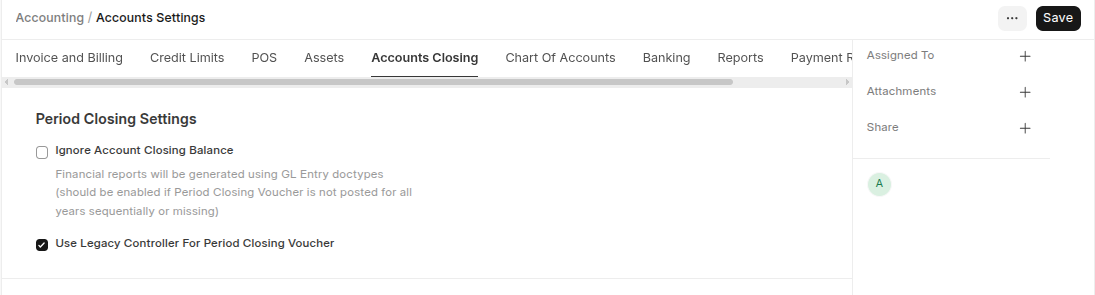
- Ignore Account Closing Balance: If enabled, financial reports will be generated using GL Entry when Period Closing Vouchers are missing.
- Use Legacy Controller For Period Closing Voucher: If enabled, ERPNext uses the defualt controller logic to process Period Closing Vouchers.
Chart Of Accounts

- Show Balances in Chart Of Accounts: If enabled the balance of your account will be displayed in the chart of account.
Banking

- Enable Automatic Party Matching: If enabled Auto match and set the Party in Bank Transactions. when you enable Enable Automatic Party Matching Enable Fuzzy Matching will be visible.

- Enable Fuzzy Matching: if enabled Approximately match the description/party name against parties.
Reports
Remarks Column Length : Set Accounts Receivable/Payable and General ledger based on your company business.
 Accounts Receivable / Payable Tuning: Select defulat data fetch method.
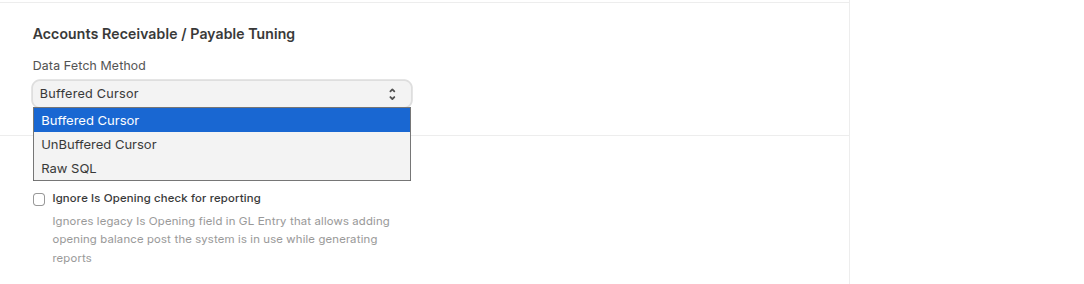
- Ignore Is Opening check for reporting: If enabled opening GL will not included in the reports.
Payment Request

- Create in Draft Status: If enabled, when new documents created it's status is in Draft by default instead of submitting them immediately.
Budget

- Use Legacy Budget Controller: If enabled, ERPNext uses the older budget controller logic for budget validations and processing.